
Play sheet music from a photo: hear how a printed score sounds
To hear what a printed score sounds like, take a photo of it and upload it to PUJIAN in your browser. It recognizes the notes and rhythms and plays the music back with a piano sound at the correct pitch. The note being played lights up and the page follows the music, and you can slow it down to 0.75x. Playback works on the free pages, so you can try it before paying.
Upload a scoreSign up with email3 free pages on sign-up · failed pages are not counted
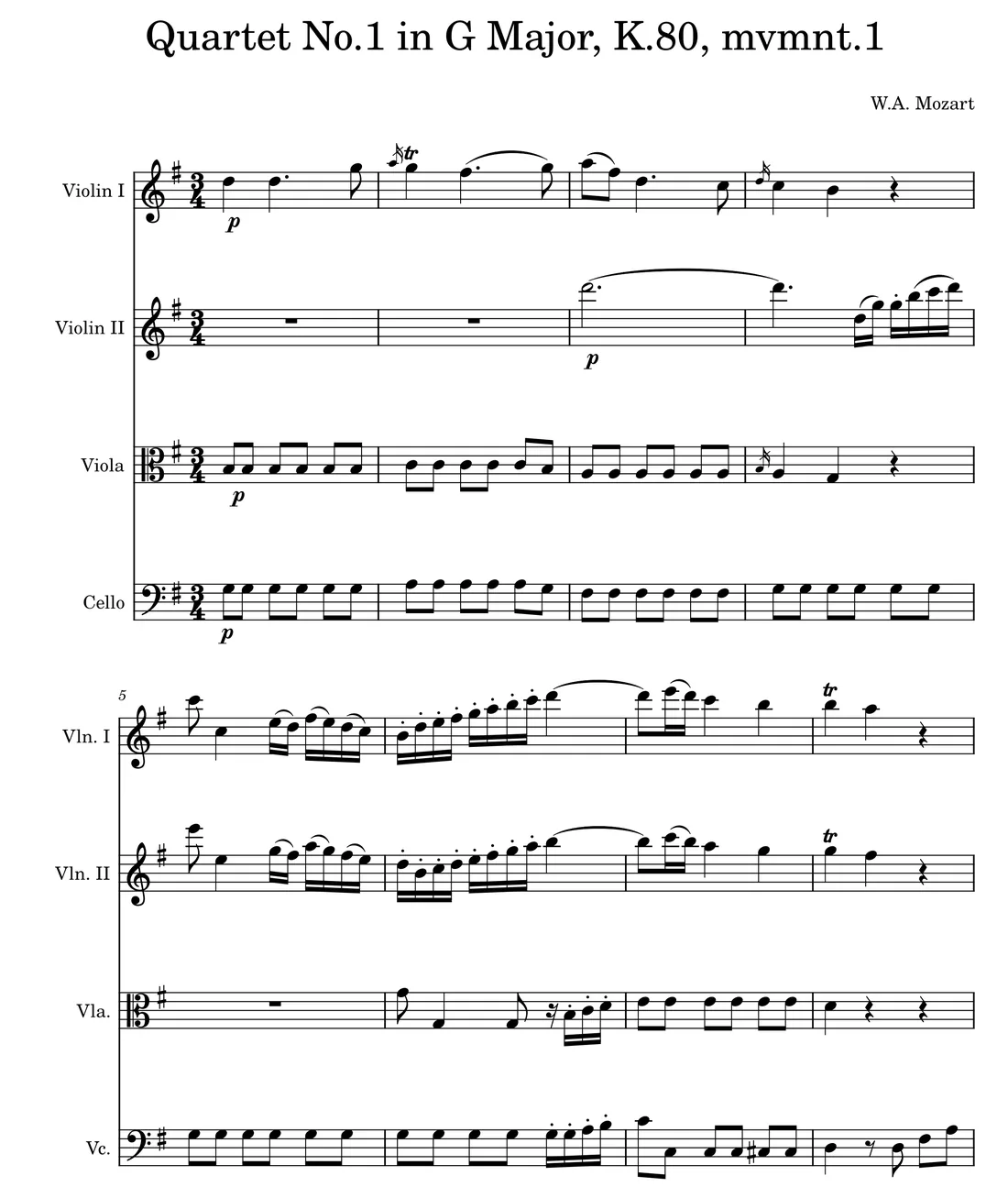
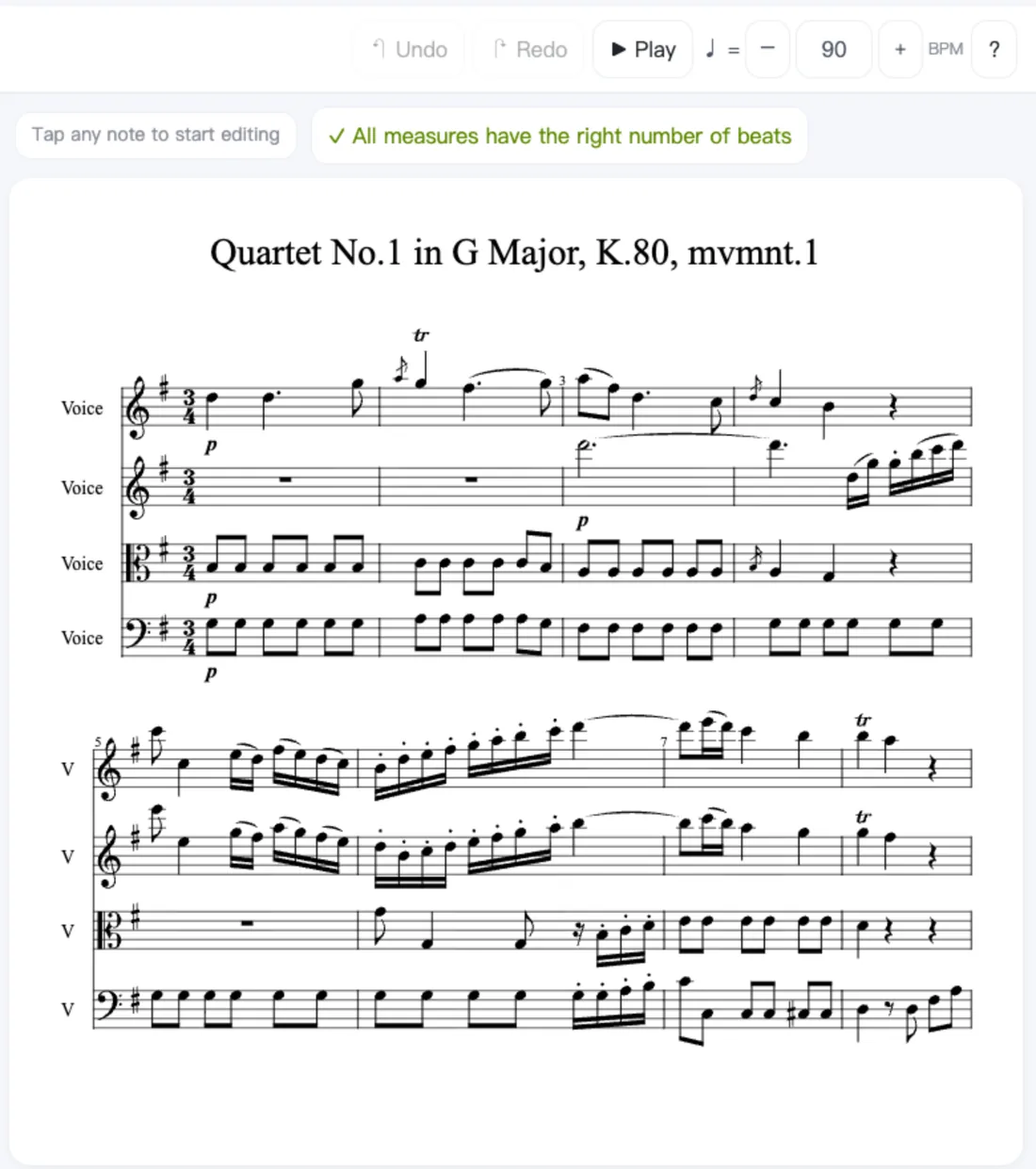
Steps
- Photograph the page flat, from directly above, in even light. One page per photo.
- Open seqnote.ink on your phone or computer and sign up with your email (3 free pages).
- Upload the photo (or a PDF or scan) and start recognition. A page usually takes from a few seconds to a couple of minutes.
- Press Play. Follow the highlighted notes, change the speed, or stop on a note.
- If something sounds wrong, compare it with the printed page. It may be a recognition mistake, which you can fix in the online editor (paid plans and page packs).
What you can do with playback
- Hear a new piece before you start practicing it.
- Check your rhythm and intonation against the correct pitches.
- Learn a choir part: split the score into parts and play only your staff row.
- Move the music to a key that suits your voice or instrument, then play it again.
- Export MIDI to use the music in a DAW or a practice app.
Who uses it
- Adult learners and returning players who want to hear a piece before reading through it.
- Choir singers who don't play the piano and want to check their notes at home.
- Students preparing exam or audition pieces, and teachers who want to play a passage to a student.
- Accompanists who get a new song late and want a quick listen on the way to rehearsal.
How it works
PUJIAN first reads the photo with optical music recognition: it finds the staves, notes, rests, clefs, key and time signatures and turns them into a digital score. The player then plays that score, so what you hear is what was recognized. If a note was misread, you hear the wrong note, which makes playback the quickest way to proofread. On clean printed music most notes come through correctly; on blurry or skewed photos expect more mistakes.
Browser vs. app: a quick comparison
| PUJIAN | PlayScore 2 | Sheet Music Scanner | |
|---|---|---|---|
| Platform | Any browser (phone, tablet, computer) | iOS, Android, Windows | iOS; a desktop version is sold on MuseHub |
| Input | Photo, scan, PDF | Camera photo, images, PDF | Camera photo; see vendor for files |
| Playback | Piano sound, note highlight, 0.75x–1.5x | Playback that scrolls bar by bar, instrument choice | Playback with instrument and speed choice |
| Edit notes | Online editor with undo and beat check | See vendor | See vendor |
| Export | MusicXML, MIDI, PDF | MIDI and MusicXML | See vendor |
Photo tips
- Lay the page flat and shoot from directly above, so the staff lines are straight and parallel.
- Use even light. Avoid shadows from your phone or hand, and avoid glare on glossy paper.
- One page per photo, with the whole page in frame and nothing cut off at the edges.
- Hold the phone steady and make sure the notes are sharp when you zoom in.
- A scan or the original PDF is always better than a photo of a screen.
Limits
- PUJIAN reads printed staff notation. Handwritten scores and blurry, skewed or dark photos are recognized poorly.
- Complex orchestral scores with many staves may need manual fixes after recognition.
- Check the result before you use it: play it back and compare with the original.
- Playback uses a piano sound. It does not sing lyrics or note names.
FAQ
- Do I need to install an app?
- No. PUJIAN runs in the browser on a phone, tablet or computer.
- Is playback free?
- Yes. Recognition and playback work on the 3 free pages you get on sign-up. Editing and MusicXML/MIDI export are in paid plans and page packs.
- Can it play just one instrument or voice?
- Yes, after you split the score into parts by staff row. Each part can be played on its own.
- Can I change the instrument sound?
- No. Playback uses a piano sound. To use other sounds, export MIDI and open it in a DAW.
- Do failed pages use up my pages?
- No. Only pages that are recognized successfully are counted. If a page fails, it is returned to your balance.