
Sheet music to MusicXML: from paper to MuseScore, Sibelius or Finale
Notation software such as MuseScore, Sibelius, Finale and Dorico cannot open a photo or a scan of sheet music directly; it needs a music file such as MusicXML. PUJIAN does the conversion: you upload a photo, scan or PDF of a printed score, PUJIAN recognizes the notes, rhythms, clefs, and key and time signatures, and you export a .musicxml file that opens in your notation program.
Upload a scoreSign up with email3 free pages on sign-up · failed pages are not counted
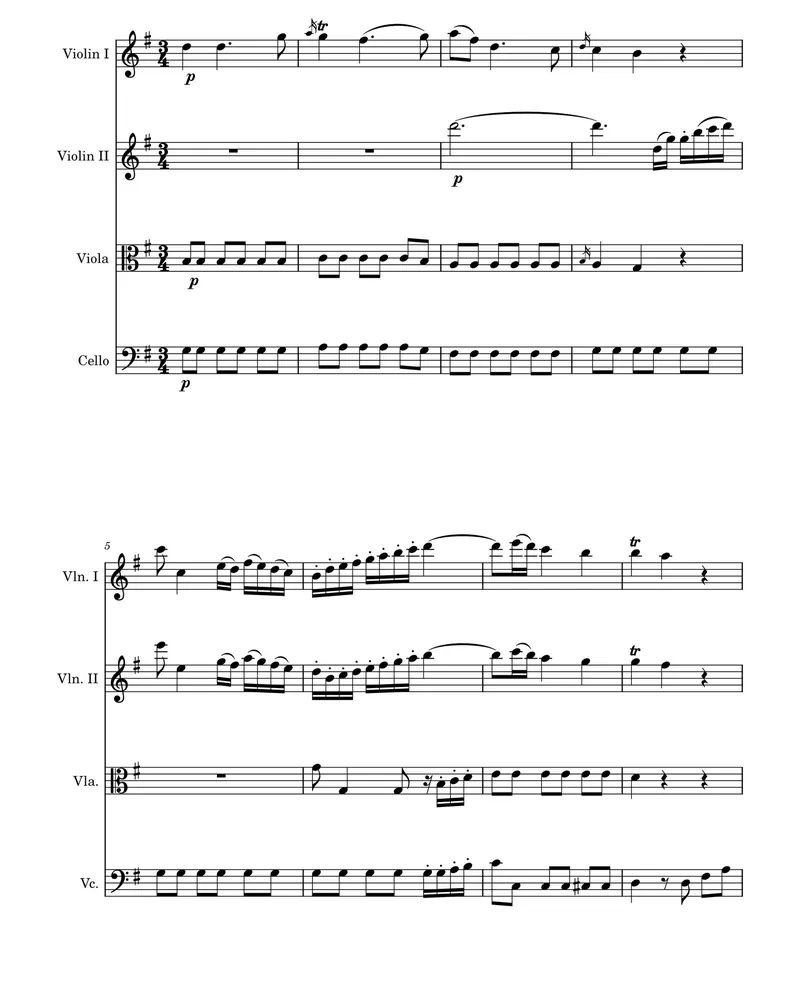
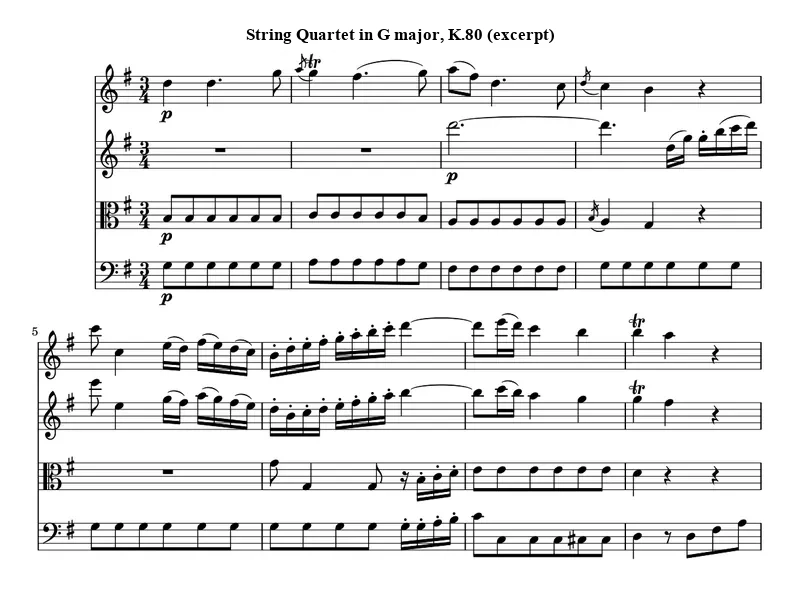
How to convert sheet music to MusicXML
- Open seqnote.ink in your browser and sign up with your email (3 free pages).
- Go to Recognize and upload a photo, scan or PDF of the score (JPG, PNG, HEIC, WEBP, BMP or PDF, up to 20 MB). Select the pages you want.
- Start recognition. Each page usually takes anywhere from under a minute to a couple of minutes.
- Play the result back to check it. Fix any wrong notes in the online editor.
- Export MusicXML (paid plans and page packs) and open the file in MuseScore (File → Open), Sibelius, Finale or Dorico.
Why MusicXML and not MIDI
MusicXML keeps the notation: clefs, key and time signatures, ties, slurs, dynamics, lyrics and separate staves. It is the right choice when you want to keep editing, re-engrave or transpose the score in a notation program. MIDI keeps only pitches, durations and instruments, which makes it better suited to playback and DAWs.
Tips for a clean result
- Lay the page flat and shoot from directly above, so the staff lines are straight and parallel.
- Use even light. Avoid shadows from your phone or hand, and avoid glare on glossy paper.
- One page per photo, with the whole page in frame and nothing cut off at the edges.
- Hold the phone steady and make sure the notes are sharp when you zoom in.
- A scan or the original PDF is always better than a photo of a screen.
What works and what doesn't
- PUJIAN reads printed staff notation. Handwritten scores and blurry, skewed or dark photos are recognized poorly.
- Complex orchestral scores with many staves may need manual fixes after recognition.
- Check the result before you use it: play it back and compare with the original.
FAQ
- Can I export directly to MuseScore's .mscz format?
- No. Export MusicXML, open it in MuseScore and save it as .mscz from there.
- Will slurs and dynamics come through?
- PUJIAN recognizes common markings such as ties, slurs, staccato dots and dynamics, and writes what it recognizes into the MusicXML. Small or unusual markings may be missed, so check them in your notation program.
- How accurate is the recognition?
- On clean printed scores, most notes are recognized correctly. Handwritten music, blurry or skewed photos and dense orchestral scores give more errors. You can listen to the result and fix wrong notes in the online editor.
- Is PUJIAN free?
- You get 3 free pages when you sign up with your email. Recognition and playback work on the free pages. Exporting MusicXML or MIDI, the online editor, part splitting and vocal separation are included in paid plans and page packs (from $4.99 for 20 pages). Online payment for international users is coming soon.